 NotchBuddy
How to get Stripe sales notifications on your Mac
Email, Slack, or a cha-ching in your notch: four ways to hear about a Stripe sale while you work, and what each one costs you in attention.
It's 11:40 on a Tuesday, you shipped a pricing change last night, and you've opened the Stripe dashboard six times since breakfast. Each time: same numbers, lost focus. You don't need a dashboard; you need to be told when something happens.
Here are four ways to get a Stripe sale onto your Mac, from free and noisy to quiet and glanceable.
1. Stripe's own email notifications
In the Stripe dashboard, open your profile's communication preferences and turn on emails for successful payments. It's free and takes a minute.
- Good: nothing to install, works everywhere.
- Not so good: an inbox is the wrong place for a signal you want in seconds. Mail batching, filters and Focus modes all delay it, and it trains you to keep checking email.
2. A webhook into Slack or Discord
Point a Stripe webhook for checkout.session.completed or invoice.paid at a small function that posts to a channel. Many no-code tools do this without code.
- Good: your team sees sales too, and you can format the message however you like.
- Not so good: you now own a server or a paid automation, and a chat app is one more window competing for your attention.
3. A menu bar app
Several Mac apps poll Stripe and put a number in the menu bar. They're tidy, but on a MacBook with a notch the menu bar is already crowded, and icons on the right get hidden behind the notch when there are too many.
4. The notch itself
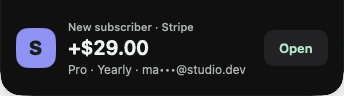
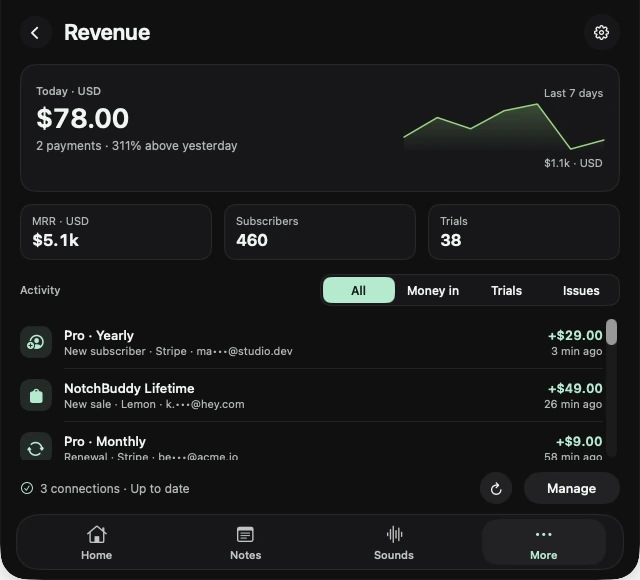
The notch is the one part of the screen you never put a window over. NotchBuddy uses it: when a payment lands, a small pill drops out of the notch with the amount, you hear a cha-ching, and a little pet jumps. Hover and you see today's takings, MRR and the latest payments.
Setting it up with a read-only key
- Create a restricted key
In Stripe, open Developers → API keys → Create restricted key.
- Give it read access only
Set Events and Subscriptions to Read. Leave everything else as None.
- Paste it into NotchBuddy
Revenue → Stripe → paste the rk_live_… key. It's saved in your Mac's Keychain and only ever sent to api.stripe.com.
Which one should you use?
| Method | Speed | Setup | Cost to your focus |
|---|---|---|---|
| Minutes, sometimes more | 1 minute | High: pulls you into your inbox | |
| Slack/Discord webhook | Seconds | 30–60 minutes | Medium: another chat notification |
| Menu bar app | Varies by app | A few minutes | Low, if you have menu bar room |
| Notch (NotchBuddy) | About 3 minutes for Stripe | 2 minutes | Low: a glance, then it's gone |
If you sell through more than Stripe, the notch approach scales: NotchBuddy also connects RevenueCat, Lemon Squeezy, Polar, Paddle, Dodo Payments, Gumroad and App Store Connect, all with read-only keys.
Test it before a real sale
Create a restricted key in Stripe's test mode (rk_test_…), connect it, and make a test payment with one of Stripe's test cards. You'll hear the cha-ching and see the pill without waiting for a customer. Swap in the live key when you're happy.
Questions, answered.
How fast do Stripe sales show up in NotchBuddy?
NotchBuddy checks Stripe every 3 minutes, which keeps it well inside Stripe's API allowance.
Can I turn off the sound?
Yes. Pick cha-ching, coins, a chime, your own file, or no sound at all.