 NotchBuddy
How to use your MacBook notch with NotchBuddy
A place for the little things you reach for all day. Here’s how to get there, and what each tool does.
Start with a hover.
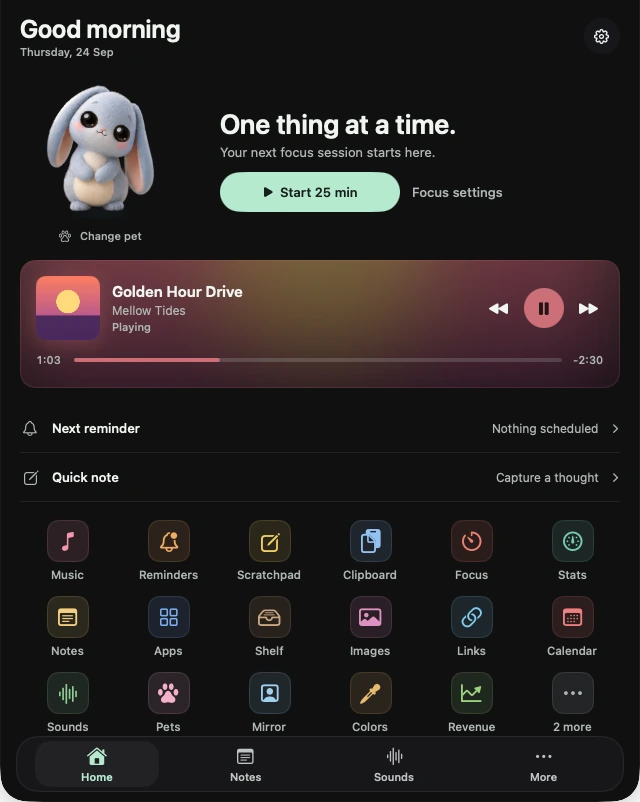
Hover over your notch to open NotchBuddy, or press ⌃⌥Space from any app. On a Mac without a notch, hover over the small pill at the top centre of your screen.
Click your pet on Home to choose a pet and theme. For licence activation and permissions, see Help.
NotchBuddy is launching soon. This guide covers the 19 tools in the direct edition.
Revenue
Stripe, RevenueCat, Lemon Squeezy, Polar, Paddle, Dodo, Gumroad and App Store sales in the notch, with a cha-ching.
Connect with a read-only key. It stays in your Mac’s Keychain and goes only to the platform you connect. App Store Connect reports daily, so it shows yesterday’s totals.
Explore Revenue ↗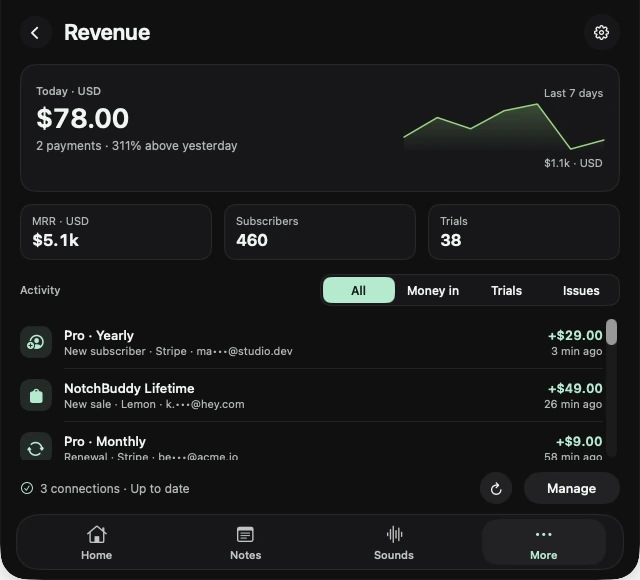
Music
Spotify, Apple Music, or YouTube in your browser, with artwork and controls.
Music and Spotify ask for permission when you first use Now Playing. You can change it later in System Settings → Privacy & Security. Browser playback is part of the direct edition.
Explore Music ↗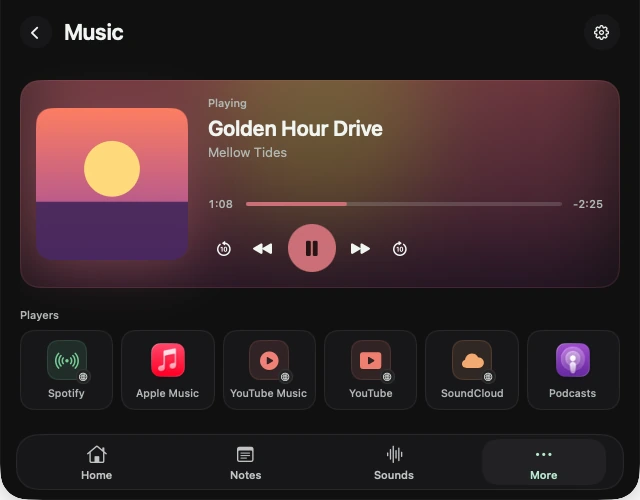
Focus
Pomodoro, countdown and stopwatch. A thin line runs along the notch while you work.
Explore Focus ↗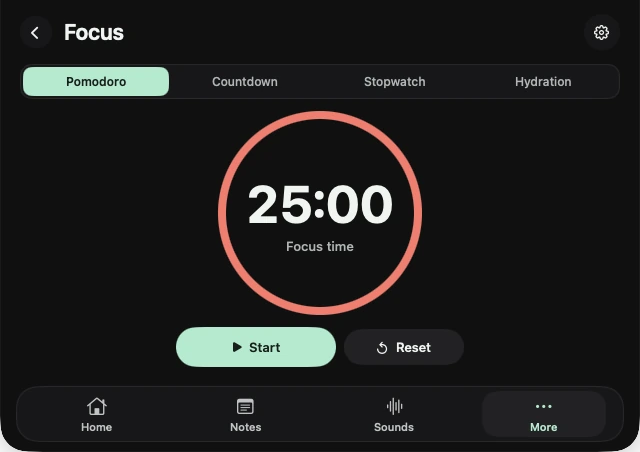
Reminders
Type “tomorrow 9am call the bank”. NotchBuddy reminds you, out loud if you like.
Explore Reminders ↗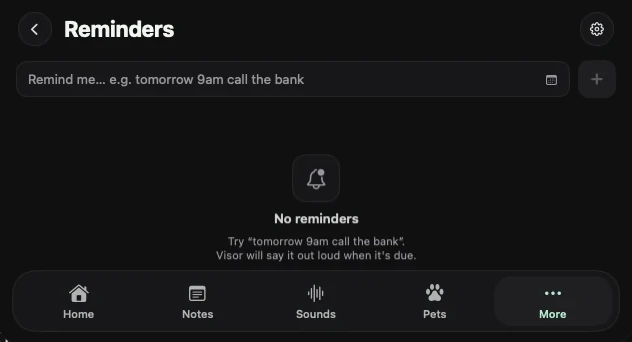
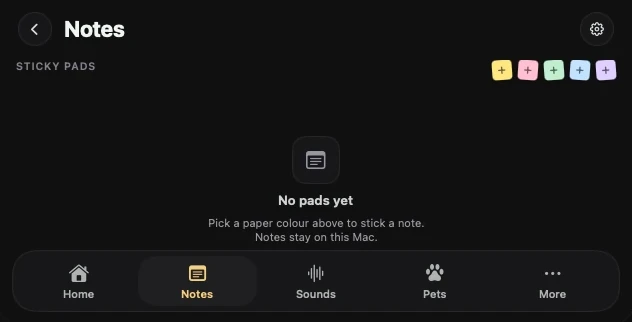
Clipboard
Everything you copied, searchable. Password-manager copies are never kept.
Explore Clipboard ↗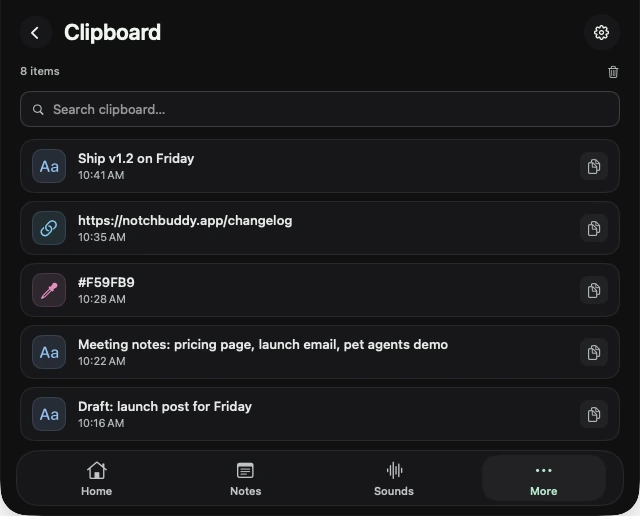
Calendar
Today and tomorrow at a glance. Read-only, never leaves your Mac.
Calendar permission is requested the first time you open the tool. You can change it later in System Settings → Privacy & Security.
Explore Calendar ↗
Pets
Pick your pet, how much it wanders, and whether it makes the odd sound.
Click the pet on Home to change pets and themes. Pet sounds stay quiet during focus sessions, music and sleep; turn them off or down in Pets or Settings.
Explore Pets ↗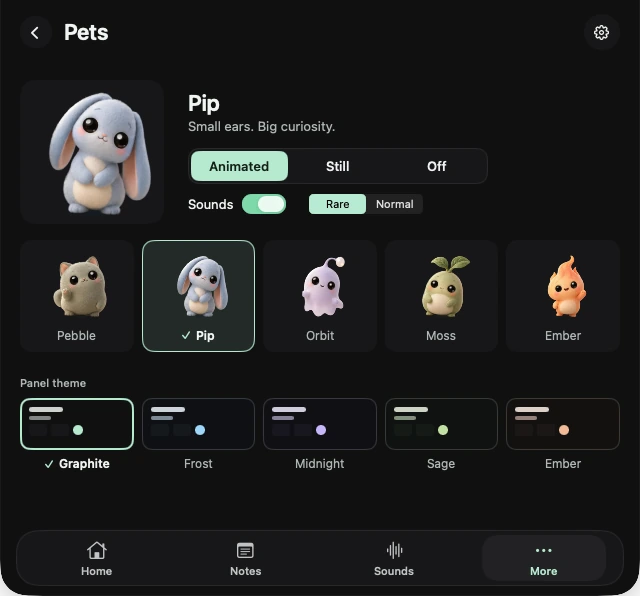
Mirror
Check yourself before a call. Camera only when you ask; nothing recorded.
Explore Mirror ↗